7 posts tagged with "Overlay"

New overlay announcements

View All Tags

New Widget: Odometer

ยท One min read

How far have you driven in your favorite car? Now you can find out! Introducing the Odometer widget. ๐Ÿš—

What it doesโ€‹

The Odometer tracks the total distance you've driven in each car - across all sessions, all tracks, all time. It's a persistent counter that keeps ticking as long as you're on track.

Whether you've put 500 km or 5,000 km into your go-to car, the Odometer gives you a satisfying way to see just how much seat time you've accumulated.

How to add itโ€‹

  1. Open your Layout Editor
  2. Search for Odometer in the widget list
  3. Add it to your layout and position it wherever you like
  4. Drive - your distance will be tracked automatically from here on

A fun little widget that adds some personality to your setup. Let us know what you think on Discord!

New Overlay: G-Force Meter

ยท 3 min read

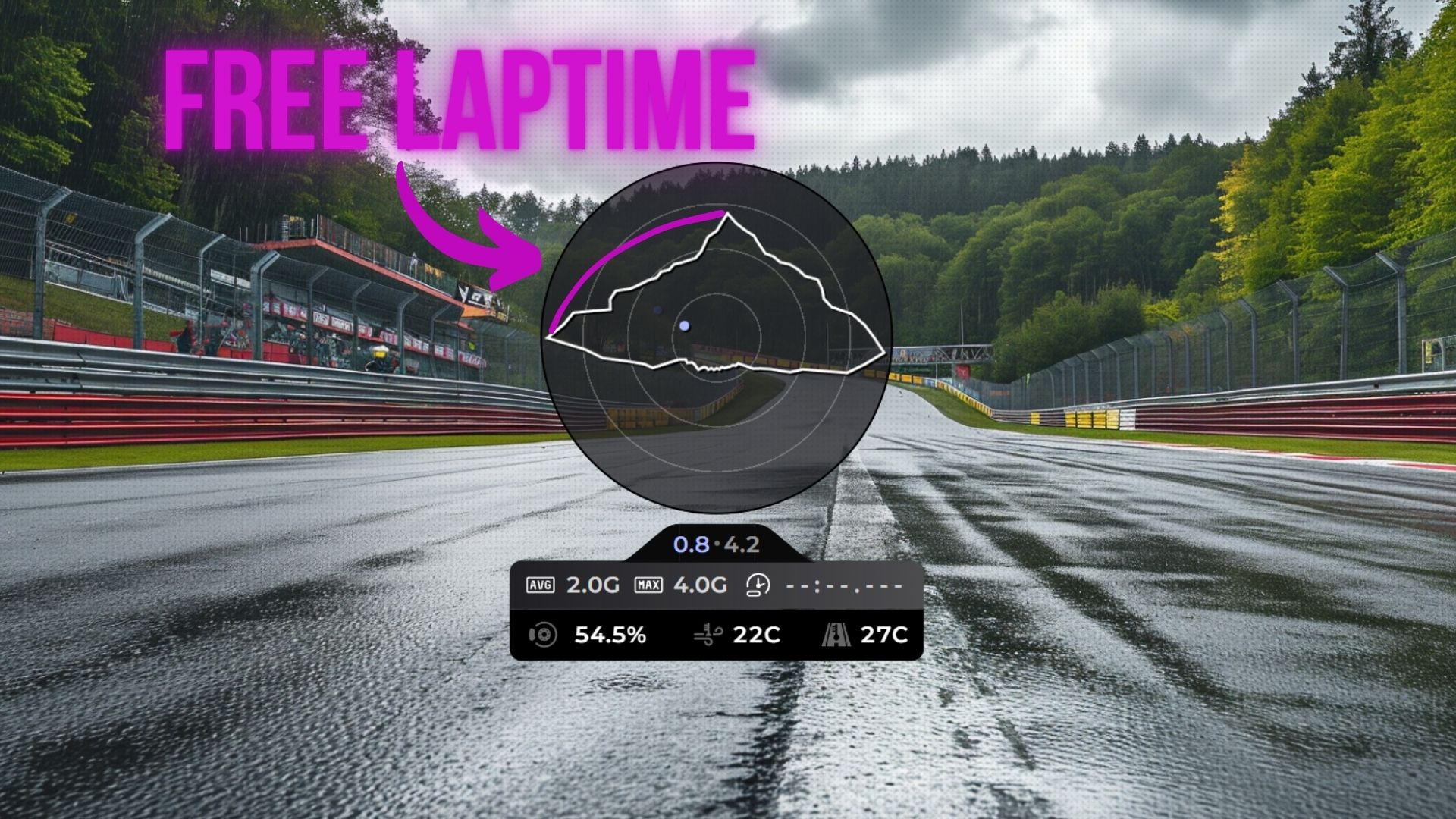
G-Force Meter Overlay

Feel the forces! The brand new G-Force Meter overlay is here. ๐ŸŽฏ

What is a traction circle?โ€‹

The traction circle (also known as a friction circle) is one of the most powerful tools for understanding vehicle dynamics. It visualizes the total grip your tires have available and how you're using it at any given moment.

Your tires can only produce a finite amount of grip. That grip can be used for braking, accelerating, or cornering - but the total is always limited. The traction circle shows this as a circular boundary: the closer the dot is to the edge, the more grip you're using. If the dot stays inside the circle, you have grip to spare. If it hits the edge, you're at the limit.

What does this tell you as a driver?โ€‹

  • Trail braking - A smooth arc from the top of the circle (braking) to the side (cornering) means you're trail braking well. A sudden jump means you're releasing the brake too quickly and losing time
  • Corner exit - The transition from cornering to acceleration should be a smooth arc along the circle's edge. Jerky movements mean you're not using all available grip
  • Smoothness - Erratic dots bouncing around inside the circle indicate rough inputs. The fastest drivers keep the dot tracing the edge of the circle as smoothly as possible
  • Finding the limit - If your dot rarely reaches the outer edge, you're leaving grip on the table. If it's constantly spiking past it, you're overdriving

What you getโ€‹

  • Traction circle - A live visualization of your lateral and longitudinal G-forces as you drive around the track
  • Current forces - Real-time G-force numbers showing exactly how much grip you're using
  • Peak G-force - Track your maximum forces to understand the limits of your car

The G-Force Meter is also available as a module inside the Input Telemetry overlay, so you can combine it with your existing pedal and steering inputs for a complete picture of your driving.

How to use itโ€‹

  1. Open your Layout Editor
  2. Add the G-Force Meter overlay, or enable the G-Force module in your Input Telemetry overlay settings
  3. Position it to your liking
  4. Hit the track and watch the forces come alive

Whether you're working on trail braking, chasing smoother inputs, or just want to understand your driving better, this overlay is an invaluable coaching tool. Share your feedback on Discord!

New Overlay: ERS (Energy Recovery System)

ยท One min read

Managing your energy just got a whole lot easier! The ERS overlay is now available for LMU and rFactor2. โšก

Hybrid and electric racing cars rely heavily on energy recovery and deployment. Knowing exactly how much energy you have available - and when to use it - can make the difference between a podium and a DNF. The new ERS overlay and widget give you real-time visibility into your car's energy recovery system.

What's includedโ€‹

  • ERS Overlay - A dedicated overlay showing your current energy state
  • ERS Widget - A compact datablock you can place anywhere in your layout

Supported gamesโ€‹

This feature is available for:

  • Le Mans Ultimate (LMU)
  • rFactor2

How to add itโ€‹

  1. Open your Layout Editor
  2. Search for ERS in the overlay or widget list
  3. Add it to your layout and position it to your preference
  4. Jump into a session with a hybrid/electric car and watch your energy data come to life

Perfect for anyone racing LMH, LMDh, or any hybrid machinery in LMU. Let us know your feedback on Discord!

New Overlay: Race Schedule

ยท One min read

Race Schedule Overlay

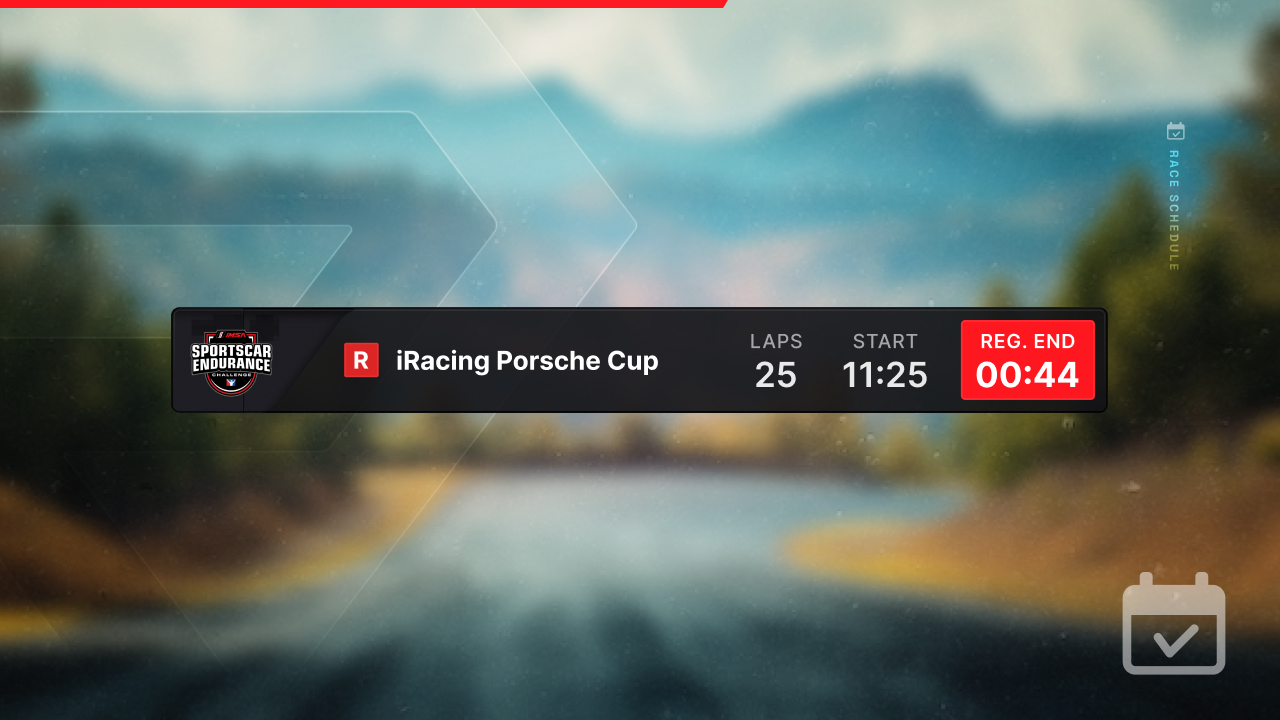
No more alt-tabbing to check when your next race starts! The new Race Schedule overlay brings your upcoming sessions right into your layout. ๐Ÿ“…

What it doesโ€‹

The Race Schedule overlay shows your upcoming race sessions at a glance. Whether you're waiting for the next official race to go green or planning your evening sessions, this overlay keeps that info right where you need it - on screen, in your layout.

See it in actionโ€‹

How to use itโ€‹

  1. Open your Layout Editor
  2. Add the Race Schedule overlay from the overlay list
  3. Position it wherever works best for you
  4. That's it - it will automatically show your upcoming sessions

A simple but handy addition to your setup. Let us know what you think on Discord!

New Widgets: Session Split & CPU Load

ยท 2 min read

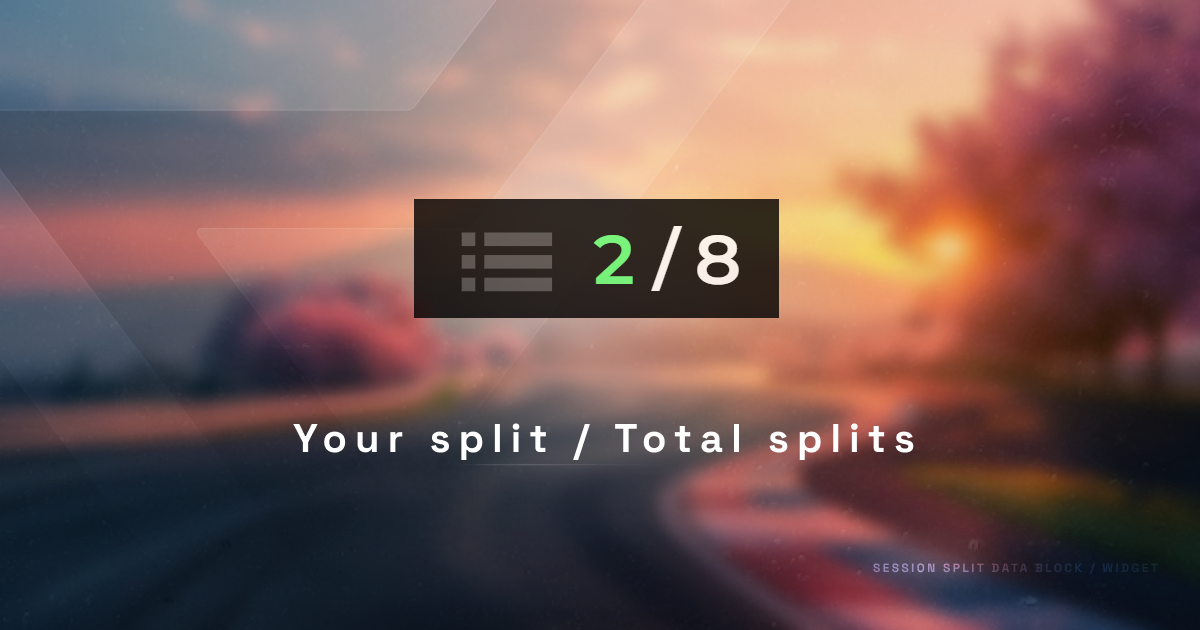
Session Split Widget

Three new widgets just landed in RaceLab! ๐ŸŽ‰

Session Splitโ€‹

If you race on iRacing, you've probably noticed that popular series can have dozens - sometimes hundreds - of drivers registered for a single time slot. iRacing handles this by splitting the field into separate sessions, called splits. The fastest drivers end up in the top split (Split 1), and the rest are distributed across lower splits based on iRating.

Knowing which split you're in matters:

  • Top split races tend to be cleaner and more competitive
  • Lower splits can be more chaotic but also more fun and forgiving
  • Your split affects the Strength of Field (SOF), which determines how much iRating you gain or lose

The new Session Split widget shows your current split number right in your layout, so you always know where you stand before the green flag drops.

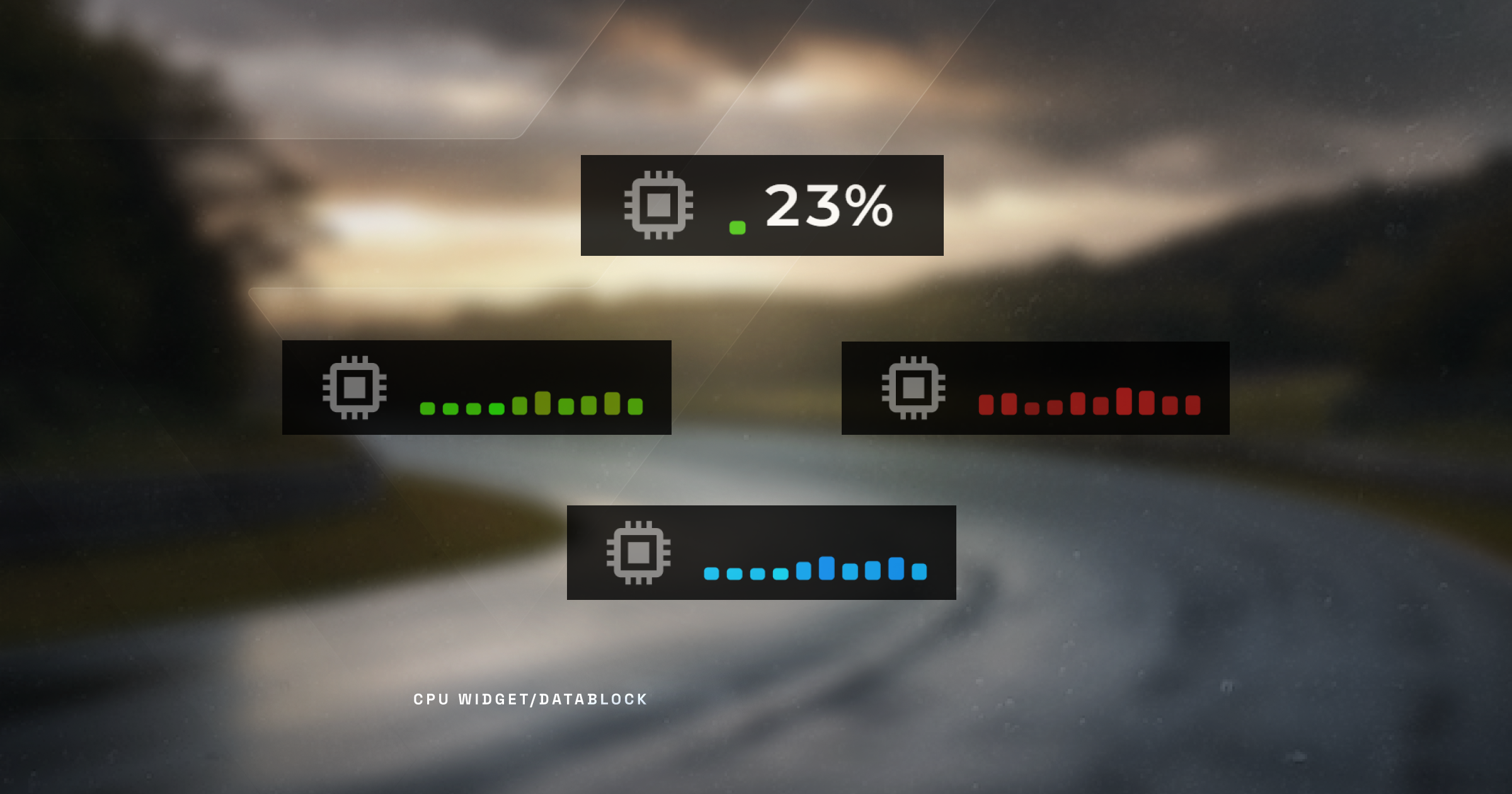
CPU Load Widgetsโ€‹

We've also added two new CPU monitoring widgets for those who like to keep an eye on system performance while racing:

CPU Widgets

  • CPU Load (All Cores) - Shows the load for each individual CPU core, useful for spotting if a single core is maxing out (common in sim racing)
  • CPU Load (Simple) - Displays your overall CPU usage as a single number for a quick at-a-glance check

How to add themโ€‹

  1. Open your Layout Editor
  2. Search for Session Split, CPU Load, or browse the widget list
  3. Add them to your layout and position them wherever you like

Simple widgets that fill common gaps. Let us know what you think on Discord!

New Overlay: Overtake Alert

ยท 2 min read

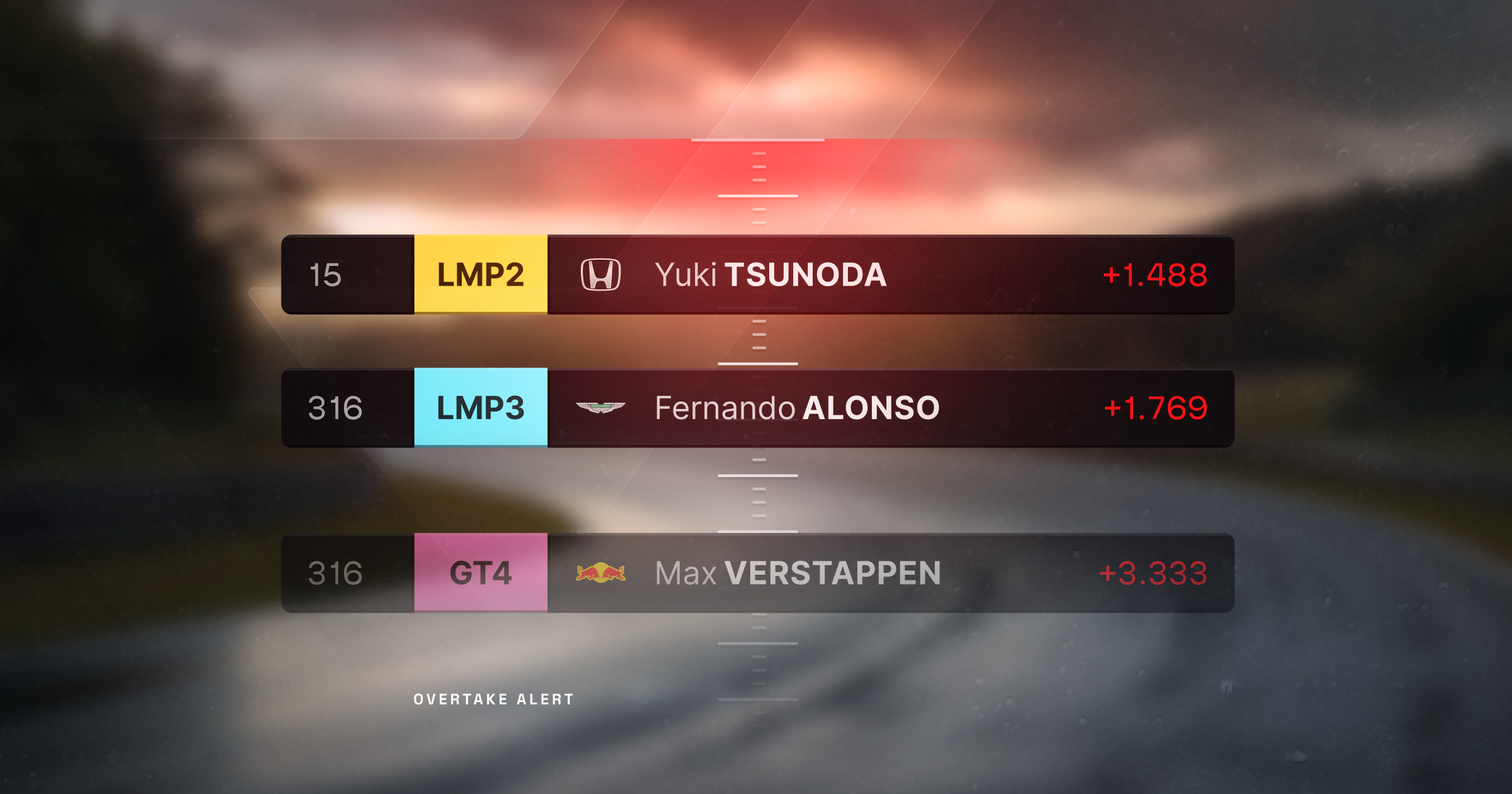
Overtake Alert Overlay

Racing in multiclass? You need this. Introducing the Overtake Alert overlay! ๐ŸŽ๏ธ

One of the trickiest parts of multiclass racing is knowing when a faster class is closing in on you. Miss that approaching prototype and you'll ruin both your race and theirs. The Overtake Alert overlay solves this by notifying you whenever a faster car class is approaching, giving you time to plan your move and let them through cleanly.

How it worksโ€‹

When a faster car class gets within range, the Overtake Alert will pop up with key information about the approaching car:

  • Car number - Know exactly who's coming
  • iRating - See their rating at a glance
  • Safety rating - Useful context for how they might drive around you
  • Driver license - Additional driver info

Why you'll love itโ€‹

  • Stay aware - No more surprise divebombs from a prototype you didn't see coming
  • Race cleaner - Give way at the right moment instead of causing incidents
  • Customizable - Dark mode, opacity settings, and shortkey support for toggling it on/off

Getting startedโ€‹

  1. Open your Layout Editor
  2. Add the Overtake Alert overlay
  3. Configure it via the overlay settings (columns, appearance)
  4. Bind a shortkey if you want to toggle it during a session

This is a must-have for anyone racing multiclass series like IMSA, ESS, or special events. Let us know how it works for you on Discord!

Introducing the Leaderboard Overlay

ยท One min read

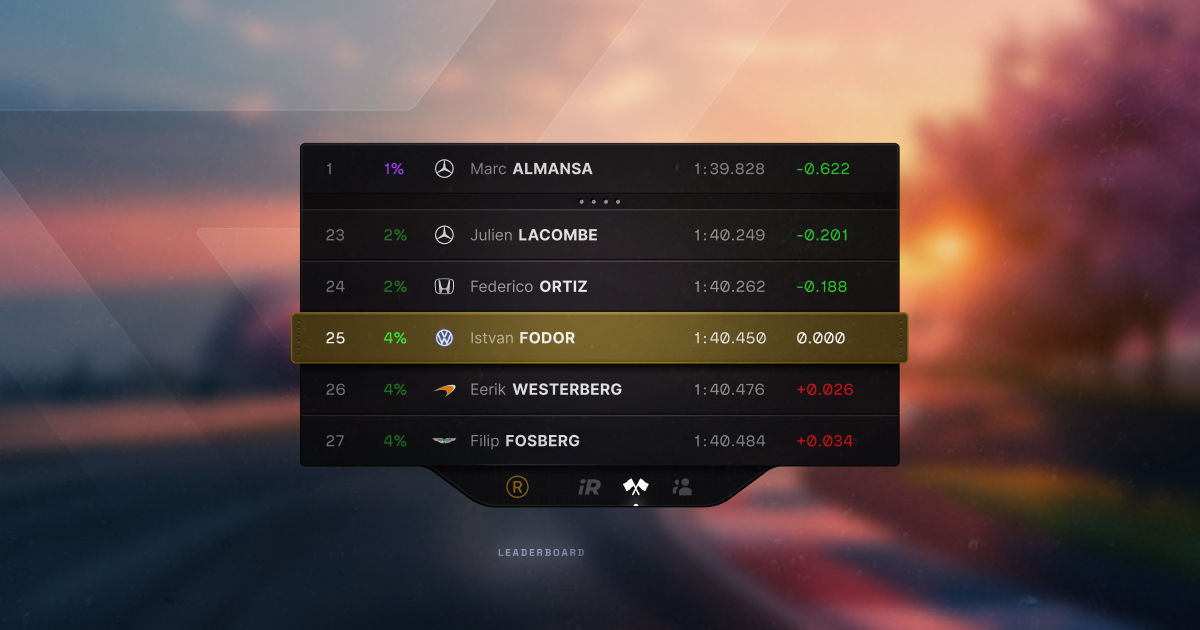
Leaderboard Overlay

A brand new overlay just dropped - the Leaderboard Overlay is here! ๐ŸŽ‰

This overlay shows the leaderboard for your series within a season in iRacing, or even the all-time standings. For other supported games, it displays a leaderboard for your current track and car combination.

What does it show?โ€‹

  • Positions - See where everyone sits in the overall standings
  • Lap times - Keep an eye on who's fast and who's falling behind
  • Gaps - Track intervals between drivers
  • Dark mode - A dark mode option is available for better readability

How to use itโ€‹

  1. Open your Layout Editor in RaceLab
  2. Add the Leaderboard Overlay from the overlay list
  3. Position and resize it to your liking
  4. Start a session and it will populate automatically

Give it a try and let us know what you think on Discord!