8.7.0

Color blind mode for the overlays, a switch to keep the standard colors in your stream and two fixes for AMS2.

New Features​

Color blind mode​

Pick your type of color blindness in Settings > General: Deuteranopia, Protanopia or Tritanopia. The four squares next to each option are its colors for faster, slower, session best and warning.
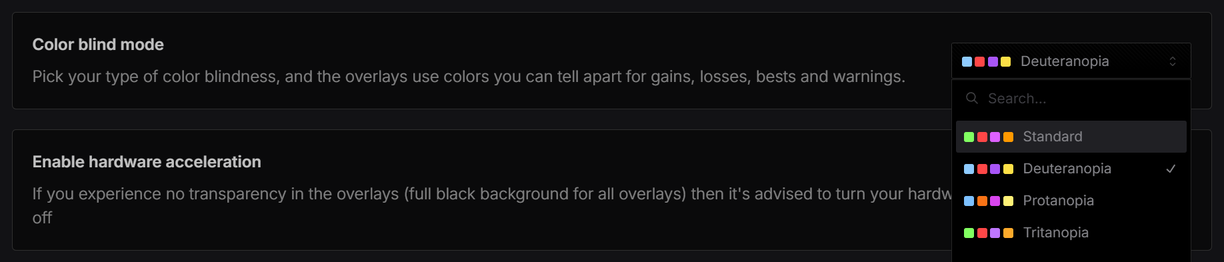
Color blind mode in the General settings

The overlays then show time gains and losses, personal and session bests, cars a lap ahead or behind and warnings in colors you can tell apart. Flags, car class colors and colors you picked yourself stay as they are.

Relative in Standard and Deuteranopia: the lap time gains and the iRating gains turn light blue, losses stay red. Protanopia also turns losses orange. Tritanopia keeps red and green and changes only the colors it can't tell apart, like the purple of the session best.
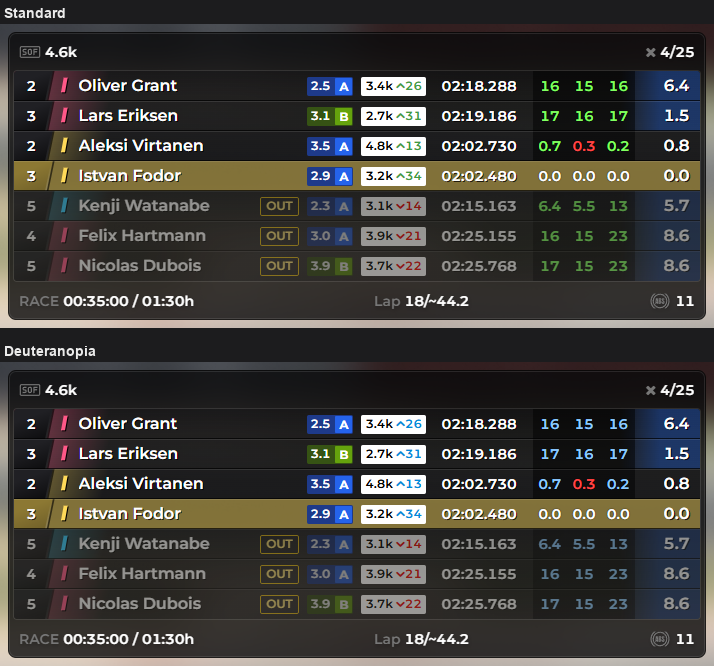
Relative in Standard and Deuteranopia

Force standard colors in your stream​

Each overlay's Browser settings, with the URLs you paste into OBS as a browser source, have a new Force standard colors switch. It shows while a color blind type is selected. Turn it on and the URLs get a flag, so the browser source shows the standard colors. Your stream viewers see the usual colors while you use color blind mode in the app.
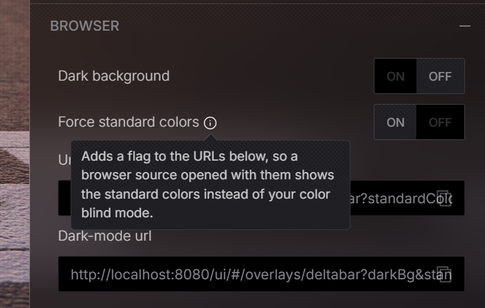
Force standard colors in the Browser settings of an overlay

Improvements / Fixes​

  • AMS2: practice and qualifying standings now order the drivers by best lap. Before, they were ordered by distance driven
  • AMS2: driver names with accents and special characters, like Ö or é, now show correctly
8.6.1

Driver info and name settings for Head 2 Head, a driver limit for the Overtake Alert, a trace speed for Input Telemetry, more accurate car positions on the maps and a fix for Chat in VR.

New Features​

Driver info in Head 2 Head​

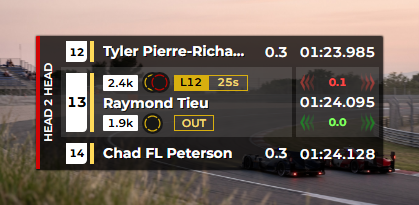
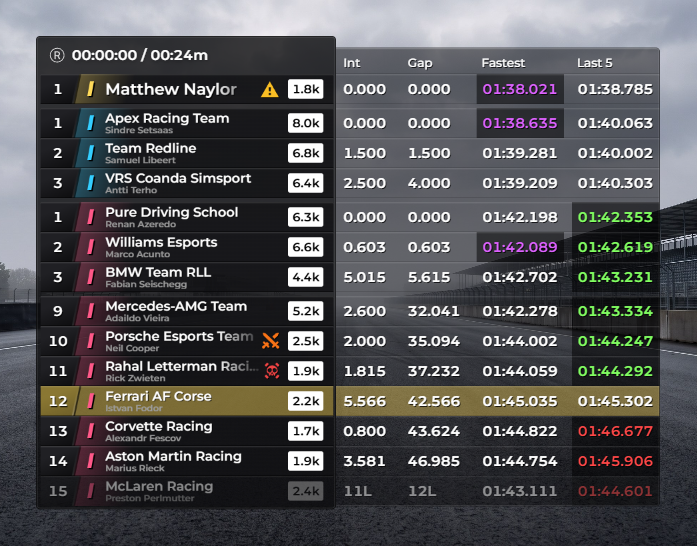
Head 2 Head can show the iRating, tire compounds and pit badges of the cars ahead and behind you: the lap and time of their last pit stop, OUT on an out lap and TOW while they are towed to their pit box (iRacing). Turn them on in the new Driver info tab and choose where they go with Placement.

Next to name: the info sits next to each driver's name.

Head 2 Head with driver info next to the names

Replace sector times: the info of the car ahead and the car behind takes the place of the sector times in your row, which leaves more room for the names.

Head 2 Head with driver info in place of the sector times

Driver name format and width in Head 2 Head​

Choose how driver names are written, for example Firstname Lastname, F. Lastname or a three-letter code, and set the width of the names in pixels. At 0 the names fit the space available. Both settings are in the Driver info tab.

Max drivers shown in the Overtake Alert​

Set how many cars the Overtake Alert shows at once, from 1 to 10. When more cars are in range, it shows the closest ones.

Trace speed in Input Telemetry​

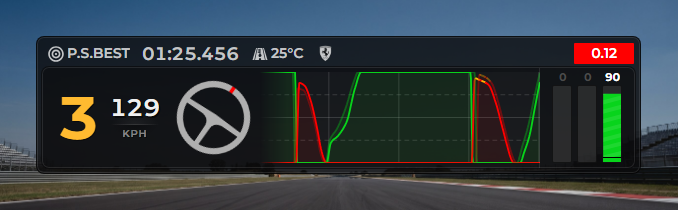
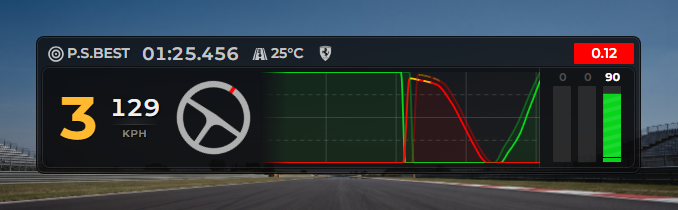
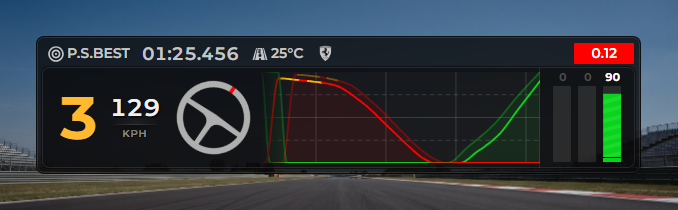
Set how fast the graph scrolls, from 20% to 300%. At 100% it moves like before. Higher values scroll faster and show fewer seconds of driving, so each braking zone gets wider. The graph keeps the same speed when you change Telemetry Length.

50%: twice the seconds in the same width.

Input Telemetry at 50% trace speed

100%:

Input Telemetry at 100% trace speed

200%: half the seconds in the same width.

Input Telemetry at 200% trace speed

Improvements / Fixes​

  • Track Map / Mini Map: more accurate car positions, especially through corners
  • Chat (VR): now keeps its Width and Height in VR. Before, it ignored them and could make VR and the sim crash
  • Account page: fixed the app turning black when you saved a new username

8.6.0

Three new fuel overlays, a fuel target per lap, a tow countdown for iRacing, color limits for engine temperatures and more control over gap decimals.

New Features​

Fuel Flow overlay​

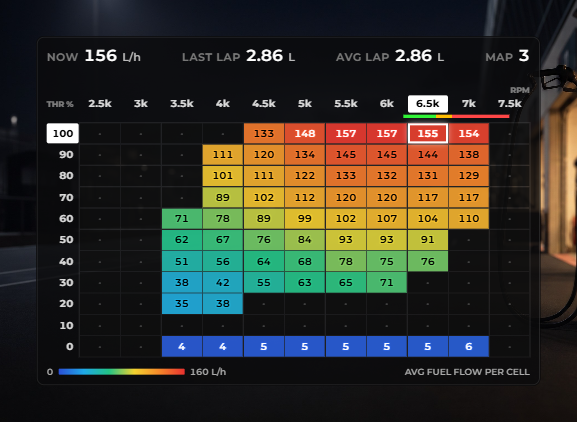
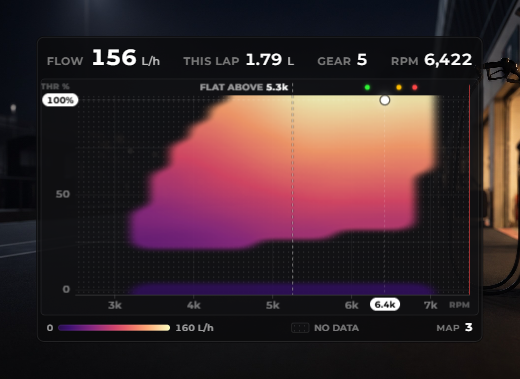
Your average fuel flow for every RPM and throttle position, filled in while you drive. Show it as a table or as a heat field.

Table: the average flow in each cell, colored from low to high.

Fuel Flow overlay as a table

Heat field: the same data as a smooth color map, with your current position marked.

Fuel Flow overlay as a heat field

Gear Economy overlay​

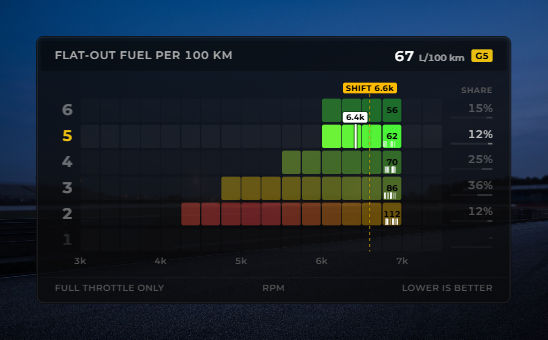
How much fuel each gear uses at full throttle across the RPM range, with your shift point marked. Lower is better.

Gear Economy overlay

Burn Zones overlay​

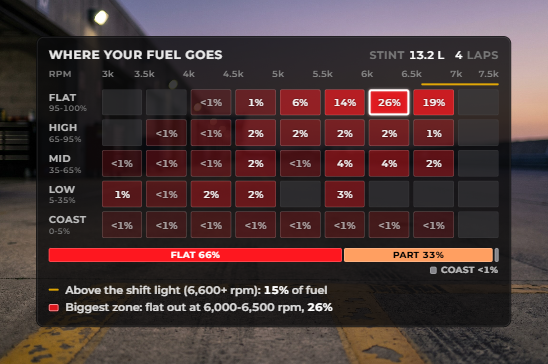
Where your fuel goes: the share used in each RPM and throttle zone, from coasting to flat out.

Burn Zones overlay

Target per lap in the Fuel Calculator​

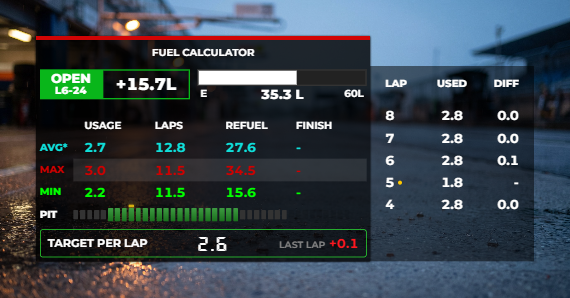
The fuel per lap that gets you to the finish. Next to it you see how far your last lap was over (red) or under (green) that target. Turn it on in the Fuel Calculator settings.

Fuel Calculator with target per lap

TOW badge (iRacing)​

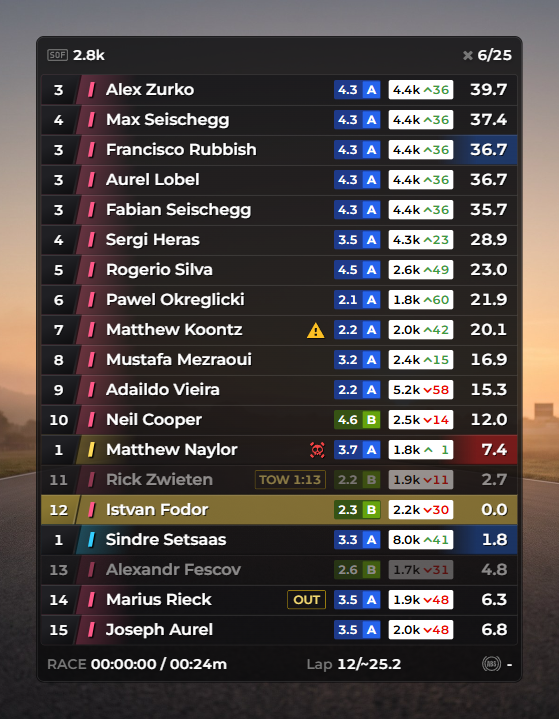
The Relative and Standings overlays show a TOW badge on cars that are being towed to their pit box, with the time left until they can leave it. For other cars the time is an estimate. Turn it on in the Pit info settings.

Relative overlay with a TOW badge

Color limits for Oil Temp and Water Temp​

Set the temperatures at which the value turns green, orange or red. Each color can be turned on or off on its own.

Oil Temp widget in green, orange and red

Decimals for gap and interval​

Choose how many decimals (0 to 3) the gap and interval show in the Standings and Horizontal Standings overlays.

Standings with 3 decimals on the gap and interval

Start screen​

Choose which screen Racelab opens on in Settings > General.

Improvements / Fixes​

Overlay list grouped by topic​

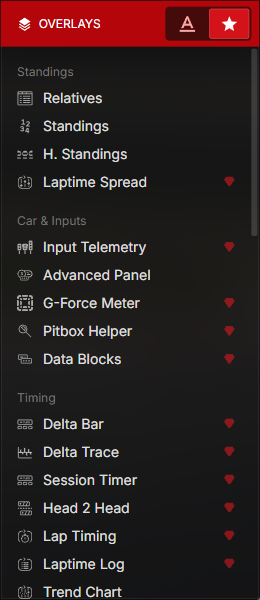
The overlay list is now grouped by topic, so related overlays sit together.

Overlay list grouped by topic

  • Weather Monitor (LMU): fixed the forecast showing the wrong sky conditions
  • Delta Bar / Lap Timing: no longer flash a new best lap when you didn't improve
  • Overtake Alert (iRacing): fixed in league races
  • F1 Broadcast: fixed session downloads and the race calendar not working
  • New background images on the login screen and the overlay pages

8.4.4

Fixes / Improvements​

  • F1 Broadcast: added support for the Sepang track

8.4.3

Fixes / Improvements​

  • Fixed overlay position not saved when resized from the top or left side of the window
  • Fixed streaming settings producing multiple notification messages for each letter typed
  • Improved user experience when overlays are scaled

8.4.2

New Features​

  • Improved onboarding experience with welcome screens for new users

Fixes / Improvements​

  • Fixed publishing layouts issue

8.4.1

Fixes / Improvements​

  • Fixed the corner speed comparison module in the Input Telemetry overlay when it was used in layouts
  • Added missing Caterham car brand logo
  • Smaller bugfixes

8.4.0

New Features​

  • Added a Racelab VR update notice: the dashboard and the VR settings page now show when a newer Racelab VR installer is available (only when Racelab VR is installed)

8.3.1

New Features​

  • Added new widget: 'Session Fastest Lap'
  • Added a new supported language: Simplified Chinese (zh-CN)
  • F1 Broadcast: added support for the Madring track

Fixes / Improvements​

  • Fixed the issue where data blocks and other small overlays rendered an (unwanted) shadow under the window
  • Fixed fuel share issues where in some edge cases the fuel was not synced

8.2.0

New Features​

  • Settings: new 'Auto-start Overlays' page listing every overlay that opens together with RaceLab. Switch them on or off in one place.
  • iRacing: added an 'Allow special characters in driver names (UTF-8)' option to the game setup page, so names with e.g. Turkish, Polish or Chinese characters can be displayed
  • iRacing: added brand logos for the new Formula Vee (Sabre, Conqueror, Classic) and Euro NASCAR V8GP cars

Fixes / Improvements​

  • iRacing: fixed accented driver names showing garbled on Windows systems with a non-Western language setting
  • Fixed driver name formats for single-word driver names (e.g. Chinese names) showing 'undefined' or empty text
  • Custom driver names: fixed the mapping file not loading when saved as 'CSV UTF-8' in Excel