Color Blind Mode
Racelab's overlays use color to tell you things at a glance: green when you gain time, red when you lose it, purple for a session best, orange for a warning. With red-green or blue-yellow color blindness, some of those colors look the same.
Color blind mode switches those colors to ones you can tell apart. Pick your type once in the settings, and every overlay follows it, in every sim Racelab supports.
Turn On Color Blind Mode
- In Racelab, open Settings > General.
- Open the Color blind mode dropdown.
- Pick your type: Deuteranopia, Protanopia or Tritanopia.
Your open overlays switch to the new colors right away. To go back to the usual colors, pick Standard.
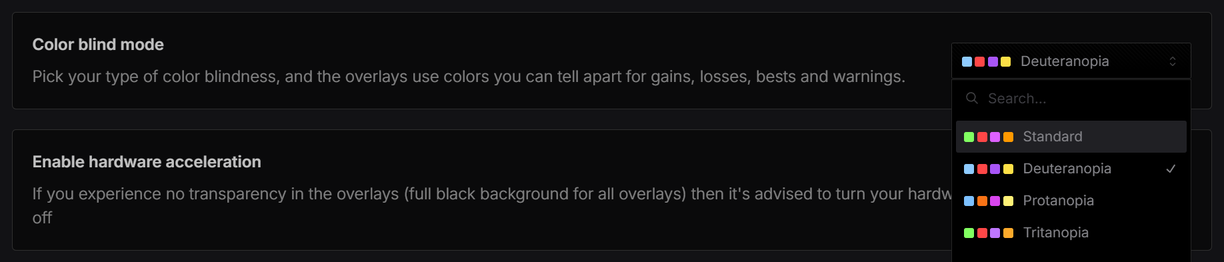
The four squares next to each type are its colors for faster, slower, session best and warning, the same colors the overlays use.
The Color Blind Types
| Type | What it is | Faster, slower, session best, warning |
|---|---|---|
| Standard | The default colors. | |
| Protanopia | Red-green color blindness: reduced or missing sensitivity to red. | |
| Deuteranopia | Red-green color blindness: reduced or missing sensitivity to green. The most common type. | |
| Tritanopia | Blue-yellow color blindness: reduced or missing sensitivity to blue. |
If you have a milder form (protanomaly, deuteranomaly or tritanomaly), pick the matching type. If you're not sure which type you have, try each one during a session and keep the one where gains and losses are easiest to tell apart.
What Changes in the Overlays
Color blind mode changes every color that carries a meaning:
- Time gains and losses: lap and sector deltas, the Delta Bar, the Delta Trace and the Head 2 Head splits.
- Personal and session bests: best lap and sector times, for example in the Laptime Log, Lap Timing, Standings and Track Map.
- iRating gains and losses and positions gained or lost.
- Cars a lap ahead or behind you in the Relative and Standings.
- Warnings and alerts, for example a car alongside you on the Radar.
Examples: Standard vs Deuteranopia
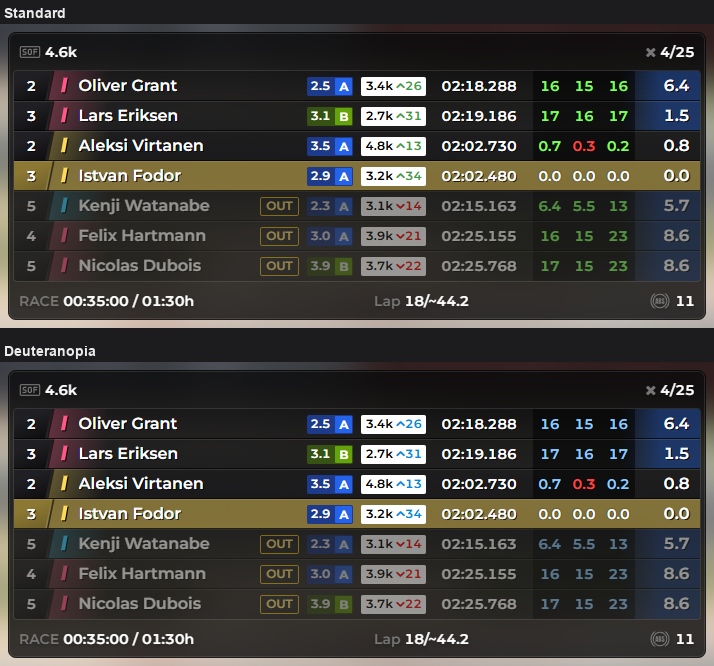
Relative
The sector time gains and the iRating gains turn light blue. The losses stay red.
Input Telemetry
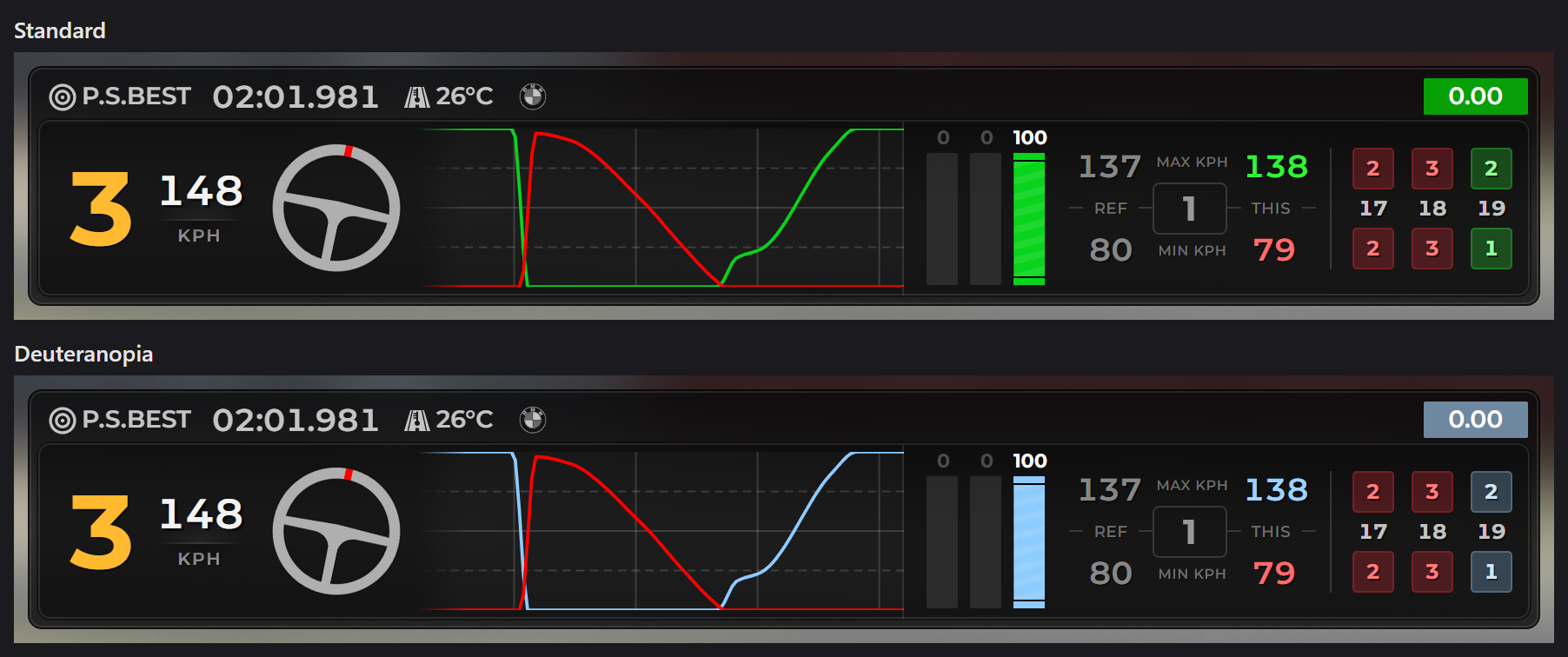
The throttle trace and bar, the faster top speed and the turns where you were faster turn light blue. The brake trace, the slower minimum speed and the turns where you were slower stay red.
What Stays the Same
- Flags: a yellow flag stays yellow, a blue flag stays blue.
- Car class colors and iRacing license colors.
- Colors you set yourself in an overlay's settings, for example a throttle color you picked for the Input Telemetry. Colors still on their default follow color blind mode.
Streaming With Color Blind Mode
Browser sources in OBS or Streamlabs follow your color blind mode too. If you want your viewers to see the standard colors while you keep color blind mode on your own screen, use Force standard colors:
- In Racelab, go to Overlays and select the overlay.
- In the settings panel, expand Browser.
- Switch Force standard colors On. The URLs below it get a
standardColorsflag. - Copy the URL and paste it into your browser source.
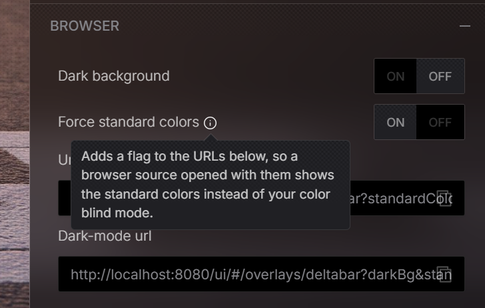
The flag is part of the URL. A browser source you added before turning the switch on still has the old URL, so paste the new URL into it. Do this for every overlay you stream.
The switch only shows while a color blind type is selected. With Standard colors, the URLs already show the standard colors.
Troubleshooting
| Problem | What to do |
|---|---|
| My stream shows the color blind colors | Turn on Force standard colors in the overlay's Browser settings and paste the new URL into your browser source. |
| I can't find Force standard colors | It only shows while a color blind type is selected in Settings > General. |
| A color didn't change | Flags, car class colors, license colors and colors you set yourself stay the same on purpose. See What Stays the Same. |
If you're still stuck, ask in our Discord or contact [email protected].