Tools Manager
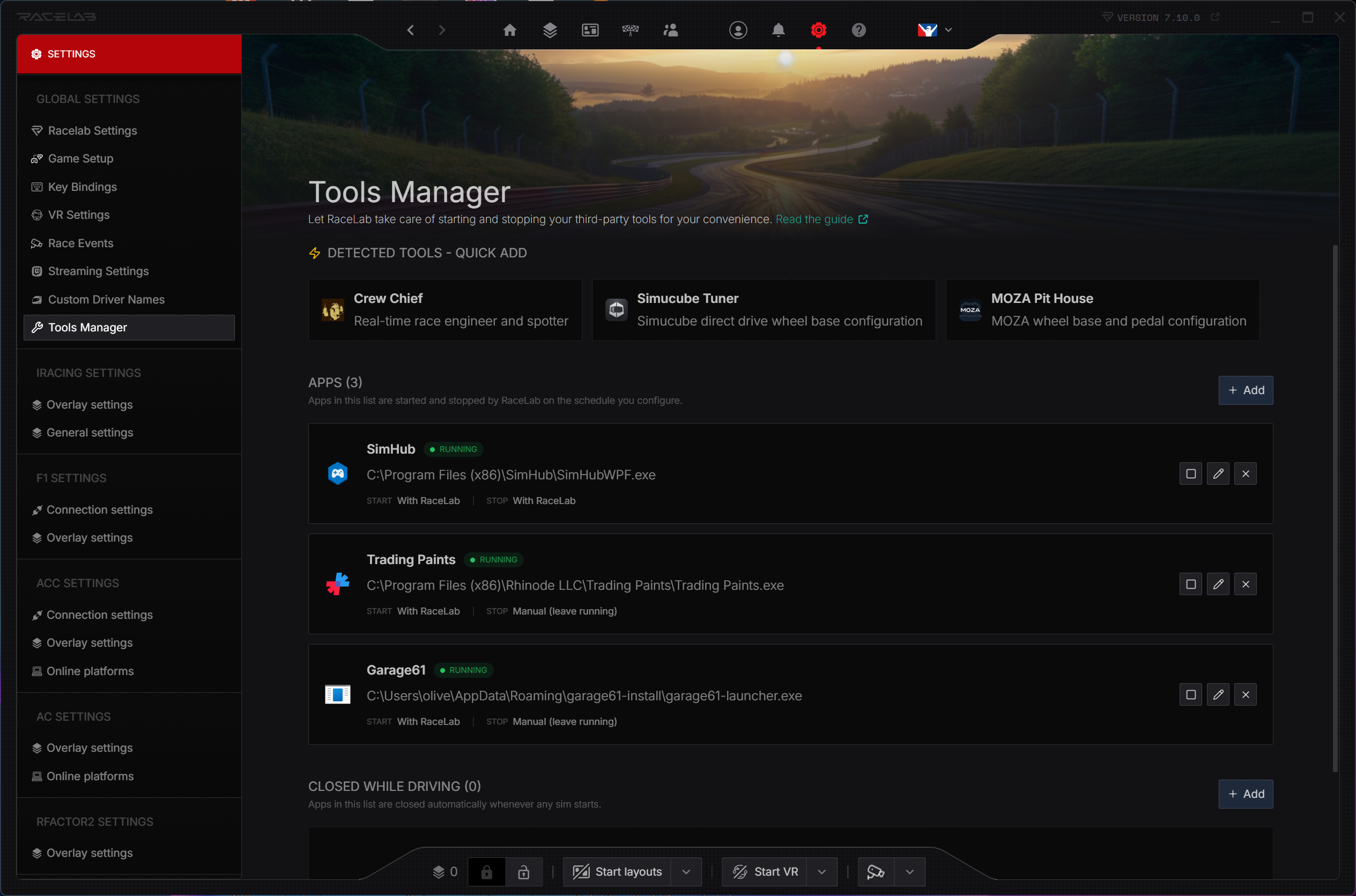
The Tools Manager lets RaceLab automatically start and stop your third-party sim racing tools (SimHub, Crew Chief, Trading Paints, etc.) so you don't have to launch them manually every session. It can also quit any apps you don't want running while you're driving.
Open it via Settings > Tools Manager.
Overview & tutorial
Core Features
- Auto-launch tools when RaceLab starts or when telemetry connects to a sim.
- Auto-stop tools when RaceLab closes or when telemetry disconnects from the sim.
- Auto-detect popular tools already installed on your system, ready to add with one click.
- Closed While Driving automatically closes any apps you don't want running once a sim starts.
- Pick from running processes to add a tool by selecting it from a live list.
- Configurable termination with graceful close, double-close for tray apps, force kill, or kill-by-name.
The Two Kinds of Tools
The Tools Manager handles two distinct workflows. Pick the one that matches what you want RaceLab to do.
| Kind | What it does |
|---|---|
| App | RaceLab starts and/or stops the app for you, on the schedule you configure (with RaceLab, with the sim, or manually). |
| Closed While Driving | RaceLab never launches the app. It only closes it when a sim starts. Use it for anything you don't want running while you're driving. |
Both kinds live on the same page, in their own sections, each with its own + Add button.
Quick Add (Auto-Detection)
The fastest way to add a tool is to let RaceLab find it for you. Detected tools appear in the Detected Tools - Quick Add section at the top of the page; click one to add it with sensible defaults you can refine afterwards.
Detection works in two stages:
- Windows registry — RaceLab reads the install location directly from a registry key the tool registers when it installs. This is the primary method and works regardless of where you installed the tool.
- Known install paths — If no registry key is found, RaceLab falls back to a list of common install folders (e.g.
C:\Program Files (x86)\...).
If your tool isn't on the list, see Requesting a New Tool Template below.
Adding an App
Click + Add in the Apps section and fill in the settings. You can paste the path, click Browse to pick the executable from disk, or click From Running... to choose from a live list of currently running processes (handy when you can't remember the exact install location).
General
| Setting | Description |
|---|---|
| Name | Display name for the tool. |
| Enabled | Toggle the tool on/off without removing it. |
| Executable Path | Full path to the .exe file. Use Browse to pick it, or From Running... to select an already-running app. |
| Auto Start | Manual (no auto start), With RaceLab (starts when RaceLab opens), or With Sim (starts when a sim connects). |
| Auto Stop | Manual (leave running), With RaceLab (stops when RaceLab closes), or With Sim (stops when sim disconnects). |
| Sim Filter | Only relevant for With Sim mode. Leave empty for all sims, or select specific ones. |
Advanced Settings
| Setting | Description |
|---|---|
| Arguments | Command-line arguments passed to the executable (e.g. -minimized). |
| Working Directory | Leave empty to use the executable's folder. |
| Pre-start delay (ms) | Wait this many milliseconds before launching the app. Useful when an app depends on something that must come up first. Only honored when the app is started by RaceLab's auto-start loop (With RaceLab or With Sim), not when you click Start manually. |
| Post-start delay (ms) | Wait this many milliseconds after launching before starting the next app in the queue. Useful for tools that need a moment to initialize before their dependents come up. |
| Termination Mode | How the tool is stopped. See below. |
| Auto-minimize | Minimize the tool's window after it opens, with a configurable delay. |
| Minimize Mode | How Auto-minimize hides the window after the tool starts: Taskbar minimizes normally, System tray (close signal) sends a close signal instead - some tools (e.g. Trading Paints) react to it by minimizing to the tray. |
| Stop taskbar flashing | Clear the taskbar flash that some tools trigger on startup, with a configurable delay. |
| Send close signal twice | When RaceLab stops the tool: for tools that minimize to tray on the first close (e.g. Trading Paints), a second close signal is sent after a delay. |
Termination Modes
Tells RaceLab how to shut a tool down. Start with Graceful, which sends a standard WM_CLOSE to the tool's main window. In an ideal world every Windows app would respond to that and exit cleanly, but plenty of sim racing tools just don't react to it.
If a tool ignores the close signal, you can fall back to one of the Force modes. They terminate the process directly without giving it a chance to clean up - so only use them when you're confident the tool can handle being killed mid-run (it isn't writing to disk, holding unsaved state, finishing an upload, etc.). When in doubt, leave the tool on Graceful and close it manually.
| Mode | Hard kill? | Behavior |
|---|---|---|
| Graceful | No | Sends a close signal (WM_CLOSE) to the tool's main window, the same thing that happens when you click the X button. The tool decides what to do with it and can save its state before exiting. This is the default and recommended setting. |
| Force | Yes | Terminates the tracked process and every child process underneath it (taskkill /F /T /PID). Use this when a tool ignores WM_CLOSE and you want it gone along with anything it spawned. |
| Force by name | Yes | Terminates every running process whose executable name matches the tool's .exe (taskkill /F /IM <exe> /T), plus the tracked PID's tree as a safety net. Designed for launcher-style tools where the main application runs as a different process than the one RaceLab originally launched. |
Whenever you pick a non-graceful mode (Force or Force by name), evaluate whether that specific tool is safe to kill mid-run. A force kill skips the tool's normal shutdown - it won't get to save settings, finish a telemetry upload, flush logs to disk, or release file locks. Tools that record or upload data (telemetry uploaders, coaching apps, recorders) are the most likely to misbehave. If you're not sure, leave it on Graceful and close it manually when needed.
What if I started the tool myself?
RaceLab can still shut down a tool it didn't launch. If you stopped a controlled tool from the Tools Manager and then started it again yourself (desktop shortcut, Start Menu, etc.), RaceLab keeps watching for it by executable name and will use the same termination mode you configured the next time it needs to stop the tool:
- Graceful sends a close signal to every running process whose executable name matches (
taskkill /IM <exe>). This is also how multi-process apps get closed cleanly. - Force falls back to Force by name because there's no specific process ID to target.
- Force by name behaves the same as it always does.
So an app that you manually restarted still gets stopped correctly when RaceLab quits or your sim disconnects.
Start Order
Apps in the Apps section are launched top-to-bottom in the order they appear. Drag the handle on the left edge of any app card to move it up or down.
The order matters when:
- A tool needs another to be running first (e.g. Crew Chief expects SimHub to be up).
- You're using Post-start delay to space out launches and want a specific sequence.
Reordering only affects auto-starts (With RaceLab and With Sim). Manual start from the card's Play button is immediate and ignores order.
Adding an App to Close While Driving
Click + Add in the Closed While Driving section for any app that should not run while you're driving. RaceLab won't launch it; it will only close it when any sim starts. Pick whatever fits your workflow - this list is yours and only yours.
The dialog is a slimmer version of the app dialog because most fields don't apply.
| Setting | Description |
|---|---|
| Name | Display name. |
| Enabled | Toggle without removing. |
| Application to close | The executable name (e.g. MyApp.exe) or full path. Match is by image name, so the file name alone is enough. |
| Termination Mode | Graceful is recommended. Multi-process apps receive WM_CLOSE on every matching process, so all instances close cleanly. |
| Send close signal twice | Same option as apps - useful for apps that minimize to tray on the first close. |
The trigger is always any sim starts. There's no per-sim filter on this list because the goal is to free up your machine whenever you're driving, regardless of which title.
Both Browse and From Running... are available, just like in the app dialog. Picking a running process auto-fills the image name for you, which is the recommended way to add an app you have already opened.
Tools That Work After a Session
Some tools become active after you finish driving. Telemetry uploaders that push .ibt files to a coaching service are the classic example. Set Auto Stop to Manual for these so RaceLab leaves them running when you disconnect from the sim or quit. They'll finish their work in the background, just let them run.
Tips & Common Setups
- An app won't stop cleanly -> Switch its Termination Mode to Force by name in the app's advanced settings. This handles tools where the launcher hands off to a different process.
- App starts but immediately steals focus -> Enable Auto-minimize with a short delay. If the taskbar keeps flashing afterwards, also enable Stop taskbar flashing.
- A tray app keeps sitting on the taskbar -> Enable Auto-minimize and set Minimize Mode to System tray (close signal). Tools like Trading Paints react to the close signal by minimizing to the tray, so they're tucked away completely instead of leaving a minimized taskbar button.
- Want an app only for iRacing -> Set Auto Start and/or Auto Stop to
With Sim, then pickiRacingin the Sim Filter. - Want an app ready before you sit down to drive -> Add it as an app with Auto Start set to
With RaceLabso it's running by the time the cockpit is up.
Requesting a New Tool Template
If you'd like RaceLab to auto-detect and pre-configure a tool that isn't listed, post a request in our Discord #suggestion-ideas channel. Include the following information:
Required
| Field | Example | Description |
|---|---|---|
| Tool name | Crew Chief | Display name. |
| Executable name | CrewChiefV4.exe | The .exe filename of the main application. |
| Registry key | HKLM\SOFTWARE\WOW6432Node\Britton IT Ltd\InstalledProducts\CrewChiefV4 | A Windows registry key that contains the install location. This is the primary detection method and works regardless of where the user installed the tool. |
| Registry value name | InstallLocation | The name of the registry value that holds the install folder. |
| Default start mode | withRacelab | When RaceLab should auto-start the tool. |
| Default stop mode | withRacelab | When RaceLab should auto-stop the tool. |
Optional (but helpful)
| Field | Example | Description |
|---|---|---|
| Known install paths | C:\Program Files (x86)\Britton IT Ltd\CrewChiefV4\CrewChiefV4.exe | Fallback install paths (full path including exe) used when the registry key is not available. |
| Default arguments | -minimized | CLI flags the tool should be launched with. |
| Sim filter | iRacing | If the tool is sim-specific, which sim(s) it applies to. |
| Termination mode | forceByName | If the tool needs a specific termination mode (see table above). |
| Auto-minimize | yes, 3s delay, to tray | If the tool opens a window that should be minimized after launch (to the taskbar, or to the tray for tools that hide on close). |